
The Tenant Admin Console provides System Administrators the capability to manage devices, polices and users for their tenant, as well as monitoring system status, device status and access controls.
Accessing the Tenant Console
The console is accessed through a subdomain specific to your organisation:
https://<MY-TENANT-NAME>.console.<MY-DOMAIN>
Dashboard
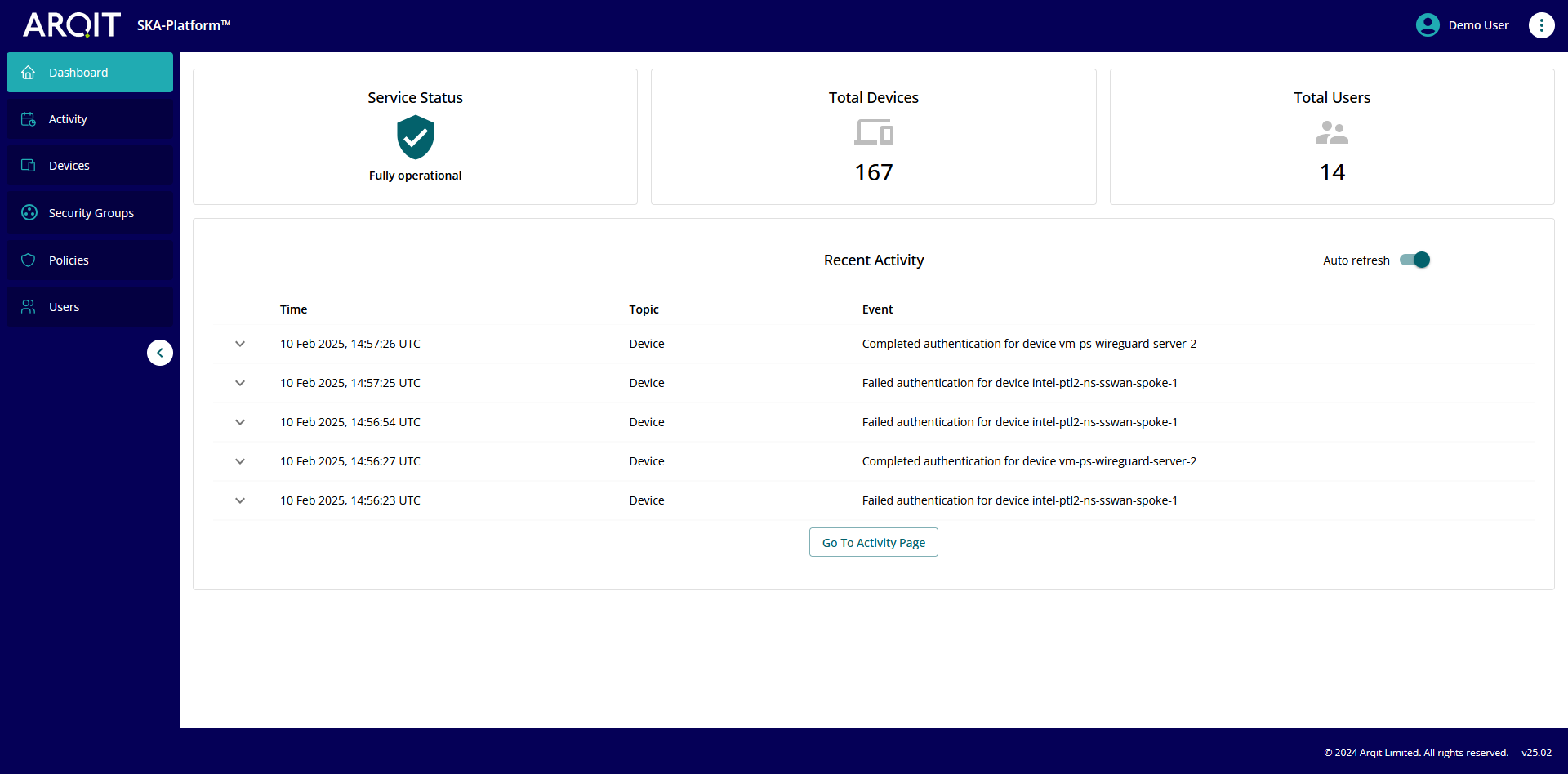
The dashboard provides some statistics for the tenant including: service status, number of registered devices and total number of users.
Activity
The Activity page provides a paginated list of events for the tenant.
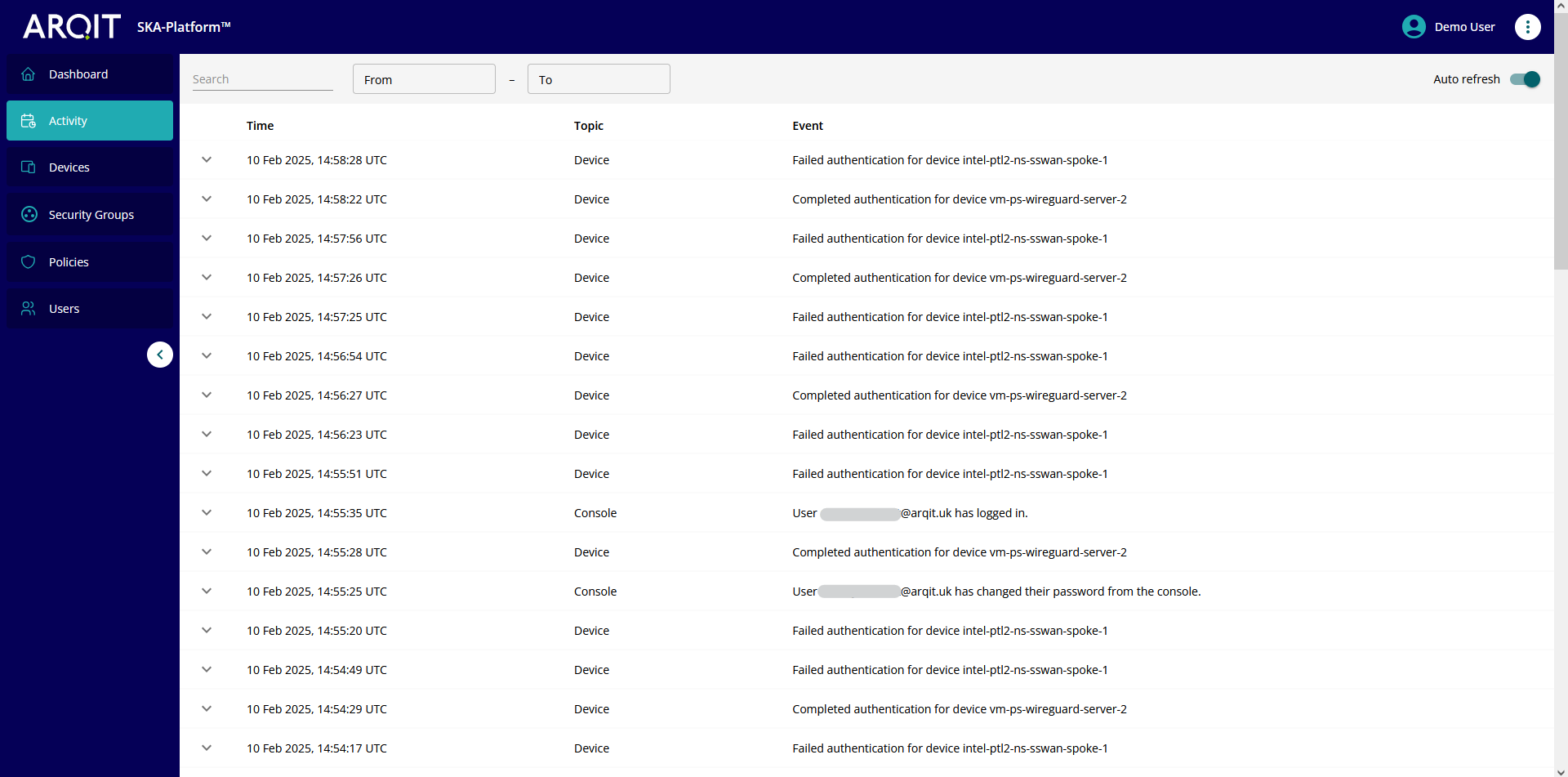
The page will auto refresh by default. This can be turned off using the “Auto refresh” toggle.
Activity events can be filtered using the search box. This enables searching for events related to specific devices, users and event topics. Results can be narrowed further using the ‘From’ and ‘To’ search criteria.
Devices
The Devices page provides information about all the registered devices on the platform.
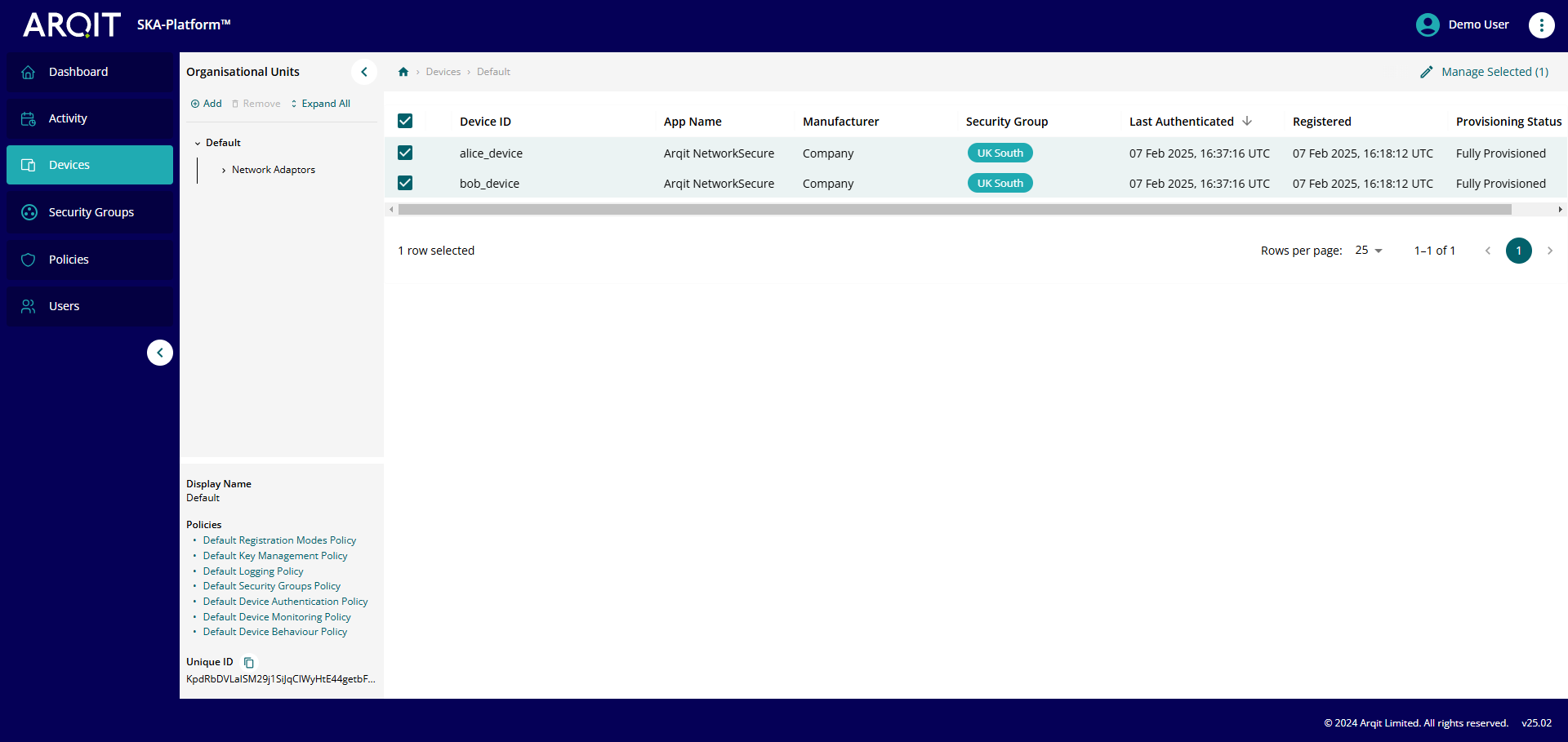
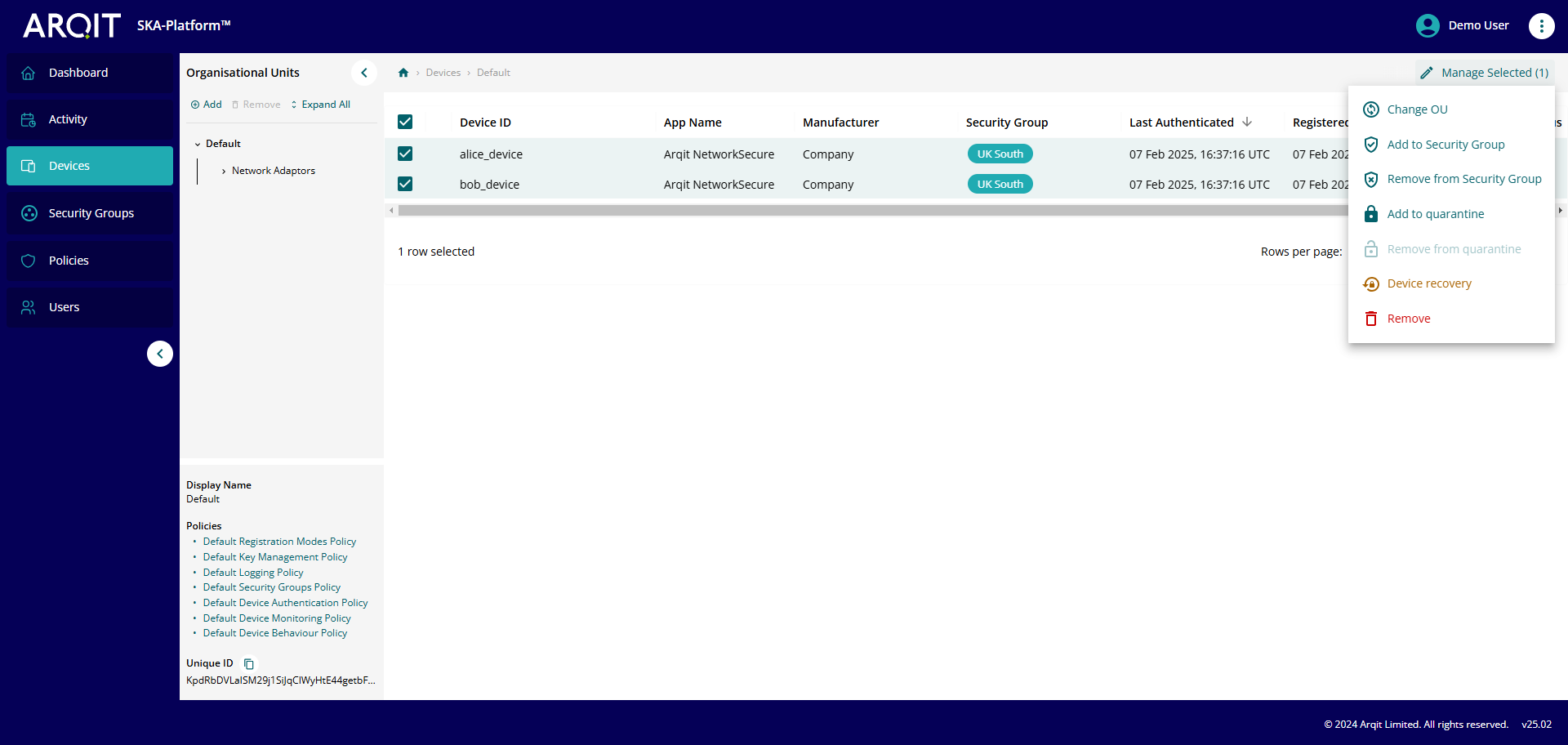
Groups of devices can be managed by select devices using the checkboxes and selecting the ‘Manage Selected’ button.
Options available are:
-
Change OU - Change the Organisational Unit in which the selected device(s) sits.
-
Add to Security Group - Add to the list of Security Groups the selected device(s) is a member of (see Security Groups below).
-
Remove from Security Group - Remove the selected device(s) from specified Security Groups.
-
Add to Quarantine - Quarantine the selected device(s). Quarantined devices are placed in a a new ‘Provisioning Status’ (‘Quarantined’) whereby they are prevented from negotiating any new keys with other devices.
-
Remove from Quarantine - Remove the selected device(s) from quarantine. This will restore devices to their previous ‘Provisioning Status’ and key negotiating functionality will be restored.
-
Device Recovery - Returns the selected device(s) to it’s ‘Registered’ state. All device associations will be preserved.
-
Remove - Deregisters the selected device(s) and removes all data for the device from the platform excluding Activity data.
Organisational Units
System Administrators can organise devices into ‘Organisational Units’ (OUs). An OU is a hierarchical structure.
System Administrator are able to create, modify and delete OUs and move devices between them.
An OU cannot be deleted if devices are currently associated with it.
Changing OUs will also affect the policies applied to the device(s) as they are inherited.
All newly registering devices will be placed in the default OU and be subject to the policies applied to it, with the exception of Arqit NetworkSecure™ devices which will be placed in the ‘Network Adaptor’ OU.
Policies
Device behaviour is governed by the policies applied to each device. Policies are inherited hierarchically, with precedent given to policies applied further down.
Policies applied to OUs can be viewed and edited via the OU details panel.
Policies applied to a device can be viewed and edited via the Device Details panel.
For information about creating and managing policy instances, see Managing Policies section below.
Device Details
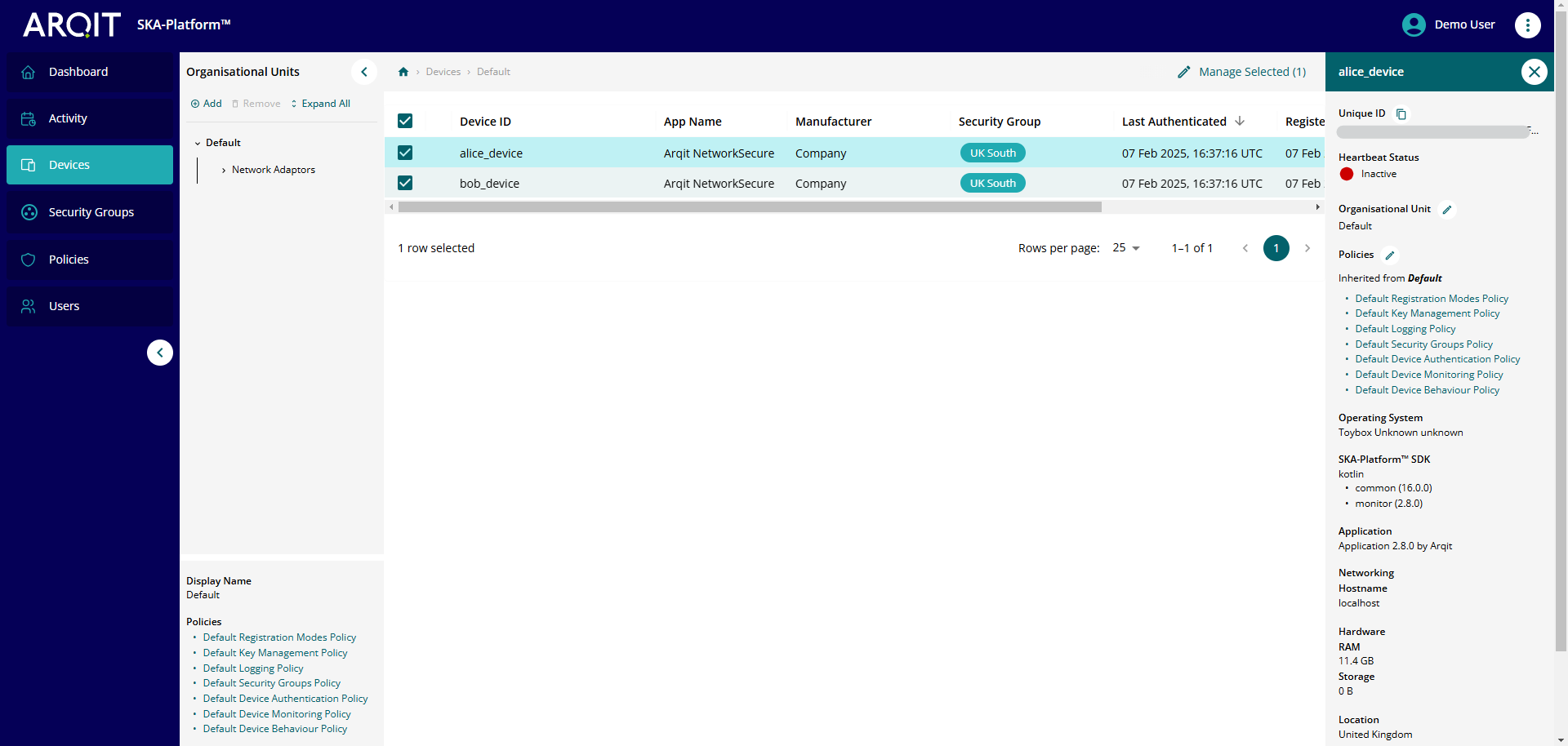
Selecting any device in the Device page opens the ‘Device details’ side panel on the right the screen.
Heartbeat Status
Devices are able to send a periodic heartbeats to the platform, allowing System Administrators to monitor the devices status:
-
Active (green) - a heartbeat message has been received recently
-
Recently Active (amber) - a heartbeat message has been received but less recently
-
Inactive (red) - no heartbeat message has been received for a large period of time
-
Unknown (grey) - no heartbeat message has ever been received for the device
Hovering over the status icon will provide details of the last received heartbeat from the device.
Organisational Unit
The details of the organisational Unit the device sits in.
Device Policies
The various policies applied to the device, including from where they are inherited (directly applied or by membership of an OU).
Device Properties
Devices are able to scrape information about their environment, add other relevant information and send it to the platform, allowing these properties to be viewed in the Device Details panel.
Security Groups
Security Groups can be used to restrict devices ability to negotiate keys with one another. When enabled, devices must be members of at least one mutual Security Group in order to negotiate keys with one another.
Security Group enforcement is disabled by default for the tenant (all devices can peer with all others). It can be enabled via the Policies page.
Security Groups
The Security Groups page allows the creation, modification and deletion of Security Groups within the tenant. Security Groups can be used to restrict devices ability to negotiate keys with one another.
A Security Group cannot be deleted if devices are currently associated with it.
Policies
Selecting “Policies” in the left sidebar will bring you to the policies page. Here, you can see Attributes about each policy in a tabular list. You can also edit details, clone and delete policies by using the icons in the ‘Action’ column. You cannot directly create new policy instances, you must clone an existing instance of a policy type, edit it and apply it to the desired Organisational Unit or Device (see Managing Devices section above).
For details on the types of settings in each policy type, see table below:
|
Policy |
Settings |
|---|---|
|
Device Authentication policy |
Length of devices' authentication session. |
|
Device Behaviour policy |
Frequency with which devices will poll for updates to policy settings. |
|
Device Monitoring Policy |
Boundaries for by which devices' ‘Activity status’ is calculated. |
|
Key Management policy |
Peering mode: Sockets (including port and whether TLS should be used); or MQTT (including MQTT server details). Whether P2P keys may be used by devices. Key expiry time for Bilocation Keys and P2P keys. |
|
Logging policy |
Logging level Log location: Local logging (including log retention period); or Syslog Forwarding (including settings for Syslog server) |
|
Registration Modes policy |
The modes by which devices can register to the tenant/OU. |
|
Security Groups Policy |
Whether devices are restricted in key negotiation between all devices in the tenant or just those with a common security group. |
Clients
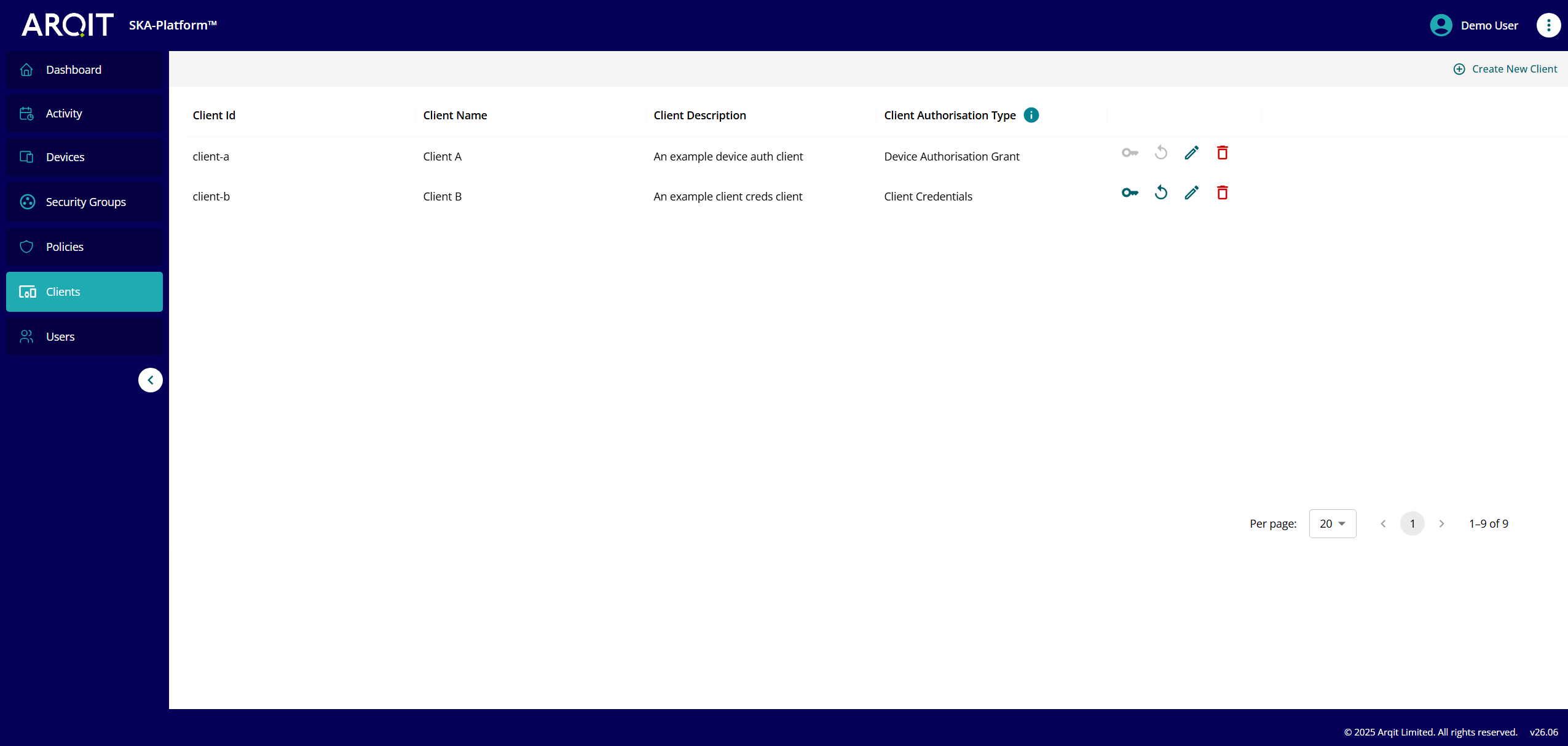
The Clients page provides tenant administrators the ability to manage OAuth2.0 clients used for the device registration workflow.
Users
The Users page provides tenant user management capabilities. You can invite, update and remove users. System Administrators can also modify a users role:
|
Role |
Permissions |
Description |
|---|---|---|
|
Master System Administrator |
Full rights to administer the platform. |
Intended for platform managers. |
|
System Administrator |
Full rights to administer the tenant |
Intended for tenant administrators. |
|
SDK User |
As ‘Commissioning Engineer’, with additional rights to create and edit Organisational Units and Policies. |
Intended for application developers to have full functionality in test environments or environments where programming and requirements are highly fluid |
|
Commissioning Engineer |
As ‘QuantumCloud User’, but can also register and de-register devices. |
Intended for users commissioning devices onto a network and checking devices are correctly registered, but where such users are not required to modify policies or hierarchy in which a device sits. |
|
QuantumCloud User |
View only user (has view only-access to all pages and no edit rights). |
Intended for low-level users. |
Support
If you encounter any issues using the console please visit the Customer Support Portal.